
Advita Ortho Active Intelligence AI

GPS CT Upload Instructions
for Shoulder Cases

STEP 1

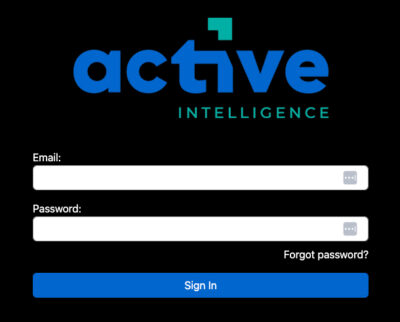
Sign in to AI One

On your desktop browser navigate to advita.com/aiOne.

  • Enter your AI One credentials and Select “Sign In”.
  • Note: Recommended browser Microsoft Edge.

Sign in to AI One
STEP 2

Click on Shoulder Cases

Once signed in to advita.com/aiOne, click on “Shoulder Cases” on the left side.
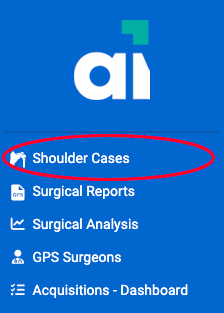
AI One Click on Shoulder Cases
STEP 3

Upload DICOM Folder

On Shoulder Cases page, navigate to the “Upload CT Scan” button at the top center of the page to upload the DICOM Folder

Upload DICOM Folder
Step 4

Drag and Drop CT Series

On Upload CT Scan page, have File Explorer (PC) or Finder (MacOS) open and ready.
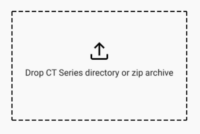
  • Drag and drop your CT series directory or zip archive. Avoid encrypted folders, and files should be under 800MB.
  • Once successfully dropped, the site will read CT file(s)
  • Note: If the case is exited while files are processing, files will be lost.
Drag and Drop CT Series
Step 5

Preview CT Series

Once loading is complete, you will find a preview of the CT Series’ axial view image, patient information, and image information.
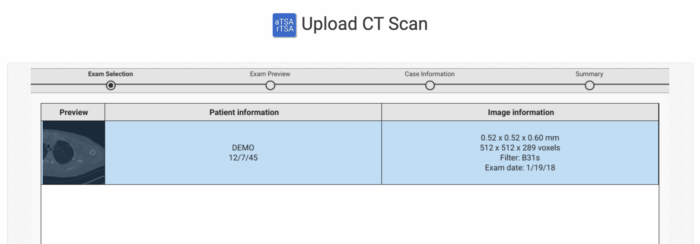
  • Select the desired series and click the “Select” button on the bottom right of your screen to continue.
  • Note: “See Warning” allows upload with minor deviation from Advita Protocol. 
  • Note: “See Error” prevents upload as it does not comply. Please ensure compliance with Advita Protocol.
Preview CT Series
STEP 6

Review CT Images

Choose circle to match Patient’s Shoulder Side.
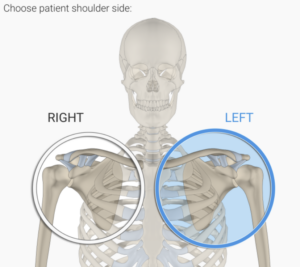
  • Select “Next” on Review CT Images section
  • Select “Next”
Review CT Images Choose circle to match Patient’s Shoulder Side.
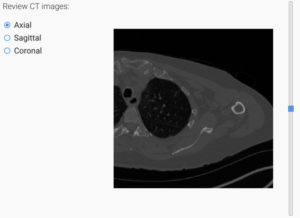
Review CT Images section
STEP 7

Case Information

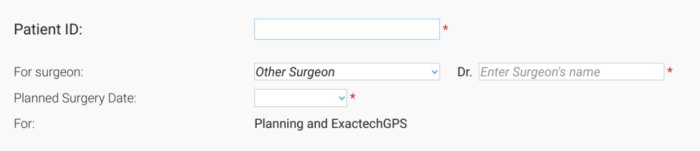
Complete the case information.

  • Type in the Patient ID
  • Select Surgeon name from the dropdown
  • Select Planned Surgery Date using the calendar or type in date
  • Once filled out select “Validate”
Complete the case information
STEP 8

Upload to AI One

Confirm that the case information is correct and select “Upload to GPS Web”

Upload to AI One

Can’t find what you’re searching for?

Just send us a message, and we’ll provide assistance for GPS.